
 Reviewed 27 September 2026
Need a downloadable 5.1 surround sound test file? Download the original six-channel PCM WAV below, or choose the eight-channel 7.1 file. For a compatible local player or receiver, each file sends a short reference tone through one named channel at a time. Start with the hardware volume low. Run the browser test only when your selected route reports six channels; these fixed-channel files do not test Dolby Atmos objects or height metadata.
Download 5.1 and 7.1 surround sound test files
Both files play one isolated channel every two seconds, with a 1.5-second tone and a short silent gap. Main channels use 440 Hz; the LFE stage uses 80 Hz. The file and channel mask identify the intended route, but the player, adapter or receiver can still remap or downmix it.
5.1 channel sequence WAV
Front left, front right, front center, LFE, back/surround left and back/surround right. Six-channel WAVE_FORMAT_EXTENSIBLE PCM, 16-bit, 48 kHz, 12 seconds, approximately 6.9 MB. Mask: 0x3F.
7.1 channel sequence WAV
Front left, front right, front center, LFE, back left, back right, side left and side right. Eight-channel WAVE_FORMAT_EXTENSIBLE PCM, 16-bit, 48 kHz, 16 seconds, approximately 12.3 MB. Mask: 0x63F.
These are uncompressed PCM references, not Dolby Digital, Dolby Atmos, DTS, DTS:X or another licensed bitstream. Downloading a file does not guarantee that the playback chain will preserve every channel.
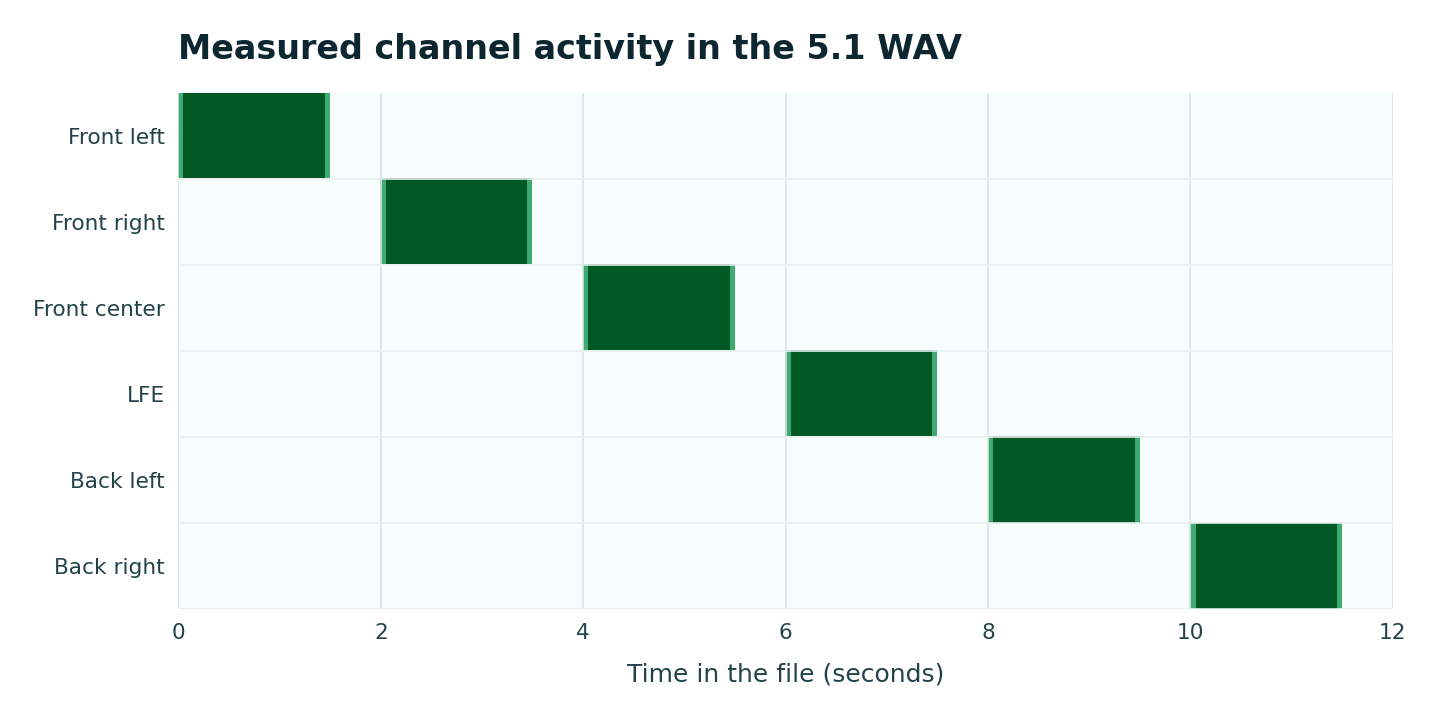
0x3F channel order follows Microsoft's WAVEFORMATEXTENSIBLE specification. This verifies the digital file, not how a player or receiver maps it to physical speakers.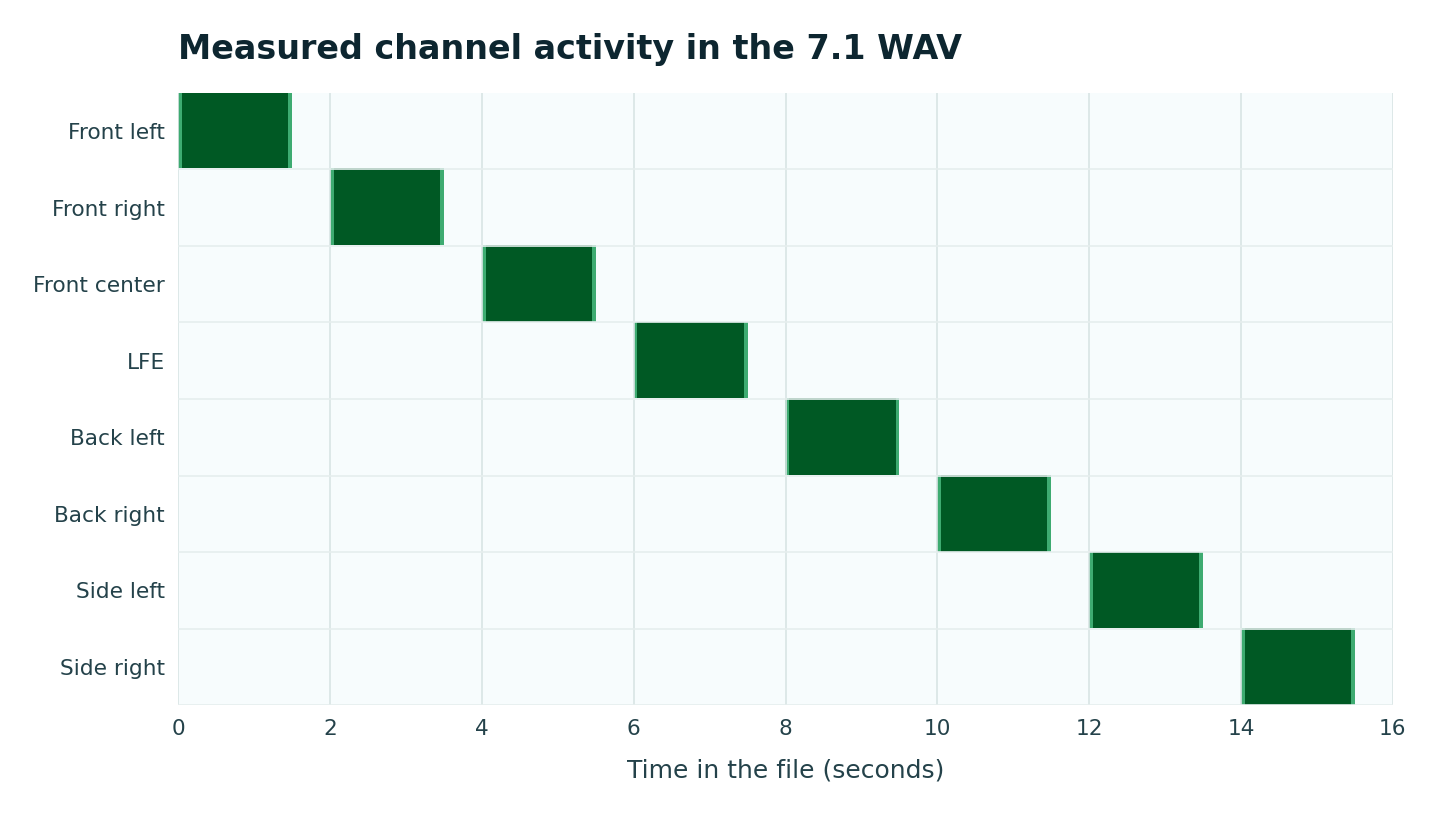
Need a 5.1 AAC test file or video?
The downloads above are SpeakerEject's original multichannel PCM WAV files. If your device or player needs an encoded AAC or MP4 sample, these audio-format providers publish channel-identification test files:
- Fraunhofer IIS multichannel AAC tests: the page offers HE-AAC and AAC-LC channel-ID samples, original WAV, and an H.264 video version. Fraunhofer cautions that some browsers and mobile players may output a stereo downmix. Open the H.264 multichannel test video (MP4).
- Dolby Digital Plus online delivery kit: Dolby lists reference MP4 samples with a 5.1 Dolby Digital Plus track and H.264 video for playback-product testing. Open the Dolby 5.1 channel-ID test video (MP4).
These are third-party samples, not files created or validated by SpeakerEject. Use them only with a player and output route that support the encoded format; playback can downmix or remap channels. Start at a low hardware volume. For uncompressed PCM, use our WAV files above.
 Six-channel capability check
Test a browser-reported 5.1 output
Connect and select the intended HDMI, multichannel interface or receiver first. The channel controls unlock only when the browser reports at least six physical output channels.
Output capability has not been checked.
Ready to check the selected output.
Start with the receiver or interface volume low. This test does not use the microphone and cannot verify Dolby, DTS, Atmos, room calibration or speaker wiring.
Does a YouTube 5.1 test video use surround sound?
YouTube's 5.1 playback control appears only when both the video and playback device support 5.1. Google documents this feature for supported TVs and streaming devices; availability depends on the exact video and playback setup. A 5.1 label in a video title alone does not confirm that your current path is outputting discrete channels. For a SpeakerEject-made file, use the six-channel PCM WAV above in a compatible player that preserves multichannel audio. Our files are WAV, not Dolby, DTS or Atmos bitstreams; the external encoded samples are linked in the section above.
How to run a useful 5.1 speaker test
- Configure the computer, media player and receiver for the same 5.1 or 7.1 layout before opening the test.
- Select the intended HDMI, USB or multichannel output and lower the receiver or interface volume.
- Use the browser capability check. Continue with the live controls only when the route reports at least six channels.
- Play one position at a time and confirm which physical speaker responds. Use the full sequence only after individual playback is comfortable.
- If the route reports fewer than six channels, use the appropriate downloadable 5.1 or 7.1 file in a player known to preserve multichannel PCM, or use the receiver's own channel test.
What each result can mean
The browser reports only two channels
The current browser and selected output expose stereo. That does not prove the receiver or computer lacks 5.1 support. Use the downloadable file, operating-system speaker setup or receiver test.
A rear or surround tone plays in front
The path may be downmixing, the player may be using stereo, or the receiver may be applying a listening mode. Confirm the input format and channel map before changing wiring.
The LFE stage is silent
Bass management, crossover settings, speaker size, the selected listening mode or the subwoofer route can affect the result. Do not raise the volume repeatedly to force an 80 Hz response.
One physical speaker stays silent
Repeat that position at the same moderate level, then use the operating system or receiver's built-in channel test. This page cannot identify a cable, amplifier channel or speaker fault.
Why stereo panning is not a 5.1 test
Left-to-right panning can test a two-channel route, but it cannot independently address front center, LFE and surround outputs. A headphone spatial effect can be useful for perception, yet it does not prove that a physical six-speaker system is mapped correctly. Use the stereo speaker test for left/right routing and this page only for a route that exposes six channels or a compatible multichannel-file workflow.
Can this test 7.1 or Dolby Atmos?
The downloadable 7.1 WAV provides eight fixed PCM channels for a compatible player and output path. It does not make the live browser buttons an eight-channel test, and it cannot prove that a receiver preserved or mapped every channel correctly. Confirm the receiver display and physical speaker that responds.
This page does not test Dolby Atmos. Dolby's current documentation describes Atmos as adding height channels plus audio objects whose position is carried as changing metadata. A fixed 5.1 or 7.1 PCM file contains neither Atmos objects nor their height metadata, so ordinary channel playback cannot certify an Atmos renderer, soundbar or headphone virtualization mode.
Format and browser limits
The Web Audio specification allows an audio destination to report more than two channels when the hardware and browser expose them. The reported maxChannelCount is the capability used by this page. Many ordinary browser routes still report one or two channels, so the controls remain locked instead of presenting a simulated result as discrete surround.
The downloadable file uses Microsoft's WAVE_FORMAT_EXTENSIBLE structure and standard channel masks: 0x3F for 5.1 and 0x63F for 7.1. The 7.1 samples add back left, back right, side left and side right after the front and LFE channels. Playback software can still remap or downmix those samples.
Technical and safety references
- W3C: AudioDestinationNode and multichannel output
- MDN: AudioDestinationNode maxChannelCount
- Microsoft: WAVEFORMATEXTENSIBLE and channel masks
- Microsoft: Mapping stream formats to speaker configurations
- Dolby Professional: Dolby Atmos documentation
- Google: Watch YouTube on TV with 5.1 surround sound
- World Health Organization: Safe listening
For a subwoofer-only comparison, use the bass and subwoofer test. For matching versus inverted stereo, use the phase and polarity test. This page is for a home-theater or receiver setup, not a phone: if a phone speaker got wet, use the water-eject tool instead.